

01 / YOUR LIBRARY, CONNECTED
Start with your material.
Keep learning in Claude.
The question you want to ask might start in a textbook chapter, a set of class notes, or a document you saved for later. Connecting Aarth gives Claude a way to find and read that material from your academic library.
Start in Aarth, where you add or access your study resources. Then connect your account to Claude and ask questions about the material you want to understand.
Your textbooks
Find a book in your library and explore a chapter through questions and explanations.
Your notes
Return to a topic, unpack a definition, or connect ideas from your Aarth notes.
Your documents
Choose an uploaded document and ask Claude to help you work through its content.
02 / BEFORE YOU CONNECT
A few things to have ready.
- Your Aarth account, with study material available in your library.
- A Claude account that allows custom connectors.
- The Aarth connector name and server URL below.
New to Aarth? Get the Aarth app on Google Play, sign in, and prepare your library first.
https://mcp.aarth.ai/mcpThe button opens Claude’s custom connector form with Aarth’s details filled in. Review and confirm them in Claude, or follow the manual steps below.
03 / STEP-BY-STEP SETUP
Connect once.
Open a new way to study.
These screenshots show the setup from Claude’s chat menu. If your screen looks different, try Settings → Connectors. See Claude’s custom connector guide for current account and workspace requirements.
- 1
Open “Add custom connector”
In a Claude conversation, open the + menu. Choose Add connector → Add custom connector.
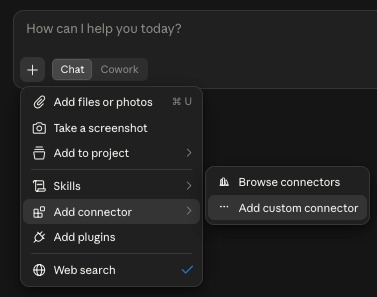
Open the custom connector form from the chat menu. Enlarge - 2
Enter the Aarth connection details
Set the name to Aarth AI and paste
https://mcp.aarth.ai/mcpinto the server URL field. Select Continue.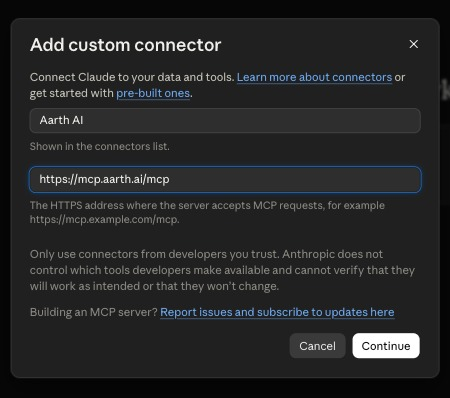
Enter the Aarth name and server URL, then continue. Enlarge - 3
Review authentication and add
In the screen shown here, Claude detects Always required authentication and No client ID — register one automatically. Keep those detected selections for this setup, then select Add.
The screenshot also shows other authentication methods. You do not need to supply your own OAuth client for the flow pictured here.
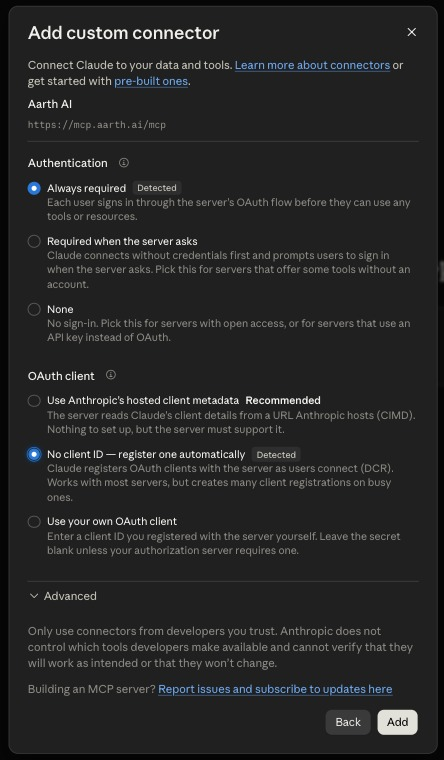
The detected authentication options in this walkthrough. Enlarge - 4
Sign in with your Aarth account
When prompted, sign in with the Aarth account that contains your study material. Review the access request and authorize the connection. If the connector appears with a Connect option, use it to complete sign-in before continuing.
Use the same Aarth account you use for your library, so Claude can retrieve the material you have access to.
- 5
Enable Aarth in your conversation
Return to the chat menu and open Connectors. Check that the Aarth AI toggle is on, as shown below. You’re ready to ask your first question.
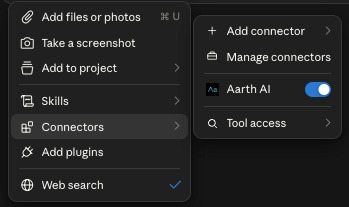
Enable Aarth AI for your conversation. Enlarge
04 / YOUR FIRST CONVERSATION
Find a source.
Ask your next question.
Begin by asking Claude to use Aarth to find something in your library. Try one of these prompts, adjusting the subject or book to match your material.
Use Aarth to show me the textbooks in my library.
Open my English textbook in Aarth and help me understand the first chapter.
Find my Aarth notes on photosynthesis and explain the main ideas using those notes.
Show my uploaded documents in Aarth. Let me choose one, then help me understand it.
Once you choose a source, keep going: “Explain that more simply,” “Give me an example,” or “Ask me a question to check my understanding.” If Claude asks to use an Aarth tool, review the requested action before allowing it.
05 / ACCESS & CONTROL
Your library.
Your permission.
A read-only connection
The current connector retrieves existing Aarth material. It cannot edit, upload, or delete files in your library.
Claude can access the Aarth content your connected account is authorized to use. You can turn off the connector in a conversation, disconnect it in Claude’s connector settings, or revoke access from Settings → Connected apps in Aarth.
Check explanations against your source material and educator guidance when accuracy matters.
06 / GOOD TO KNOW
Questions, answered.
Do I need to use Aarth first?
Yes. Use your Aarth account to add or access your study material first. The connector uses that account’s library; it does not automatically provide every textbook or another student’s material.
What if I do not see Add custom connector?
Try Claude’s Settings → Connectors, or open the Add to Claude link in this guide. Available controls can differ by app version, account, or organization settings. In a managed workspace, ask your administrator whether custom connectors are enabled.
Do I need an API key or client ID?
The setup shown here uses Aarth account sign-in and automatic OAuth client registration. You do not need to create an API key or enter your own client ID for this flow. Keep authentication enabled and follow the sign-in prompts.
Why is Claude asking to use an Aarth tool?
Claude may ask you to approve a connector tool before it retrieves material. Review the requested action and allow it if it matches what you asked Claude to do.
What if my material does not appear?
Check that Aarth AI is enabled in the conversation and that you signed in with the Aarth account containing your material. Start with a direct request such as “Show my Aarth textbooks.” If sign-in has expired, reconnect the account.
Still need a hand? Talk to the Aarth team
Your material.
A new place to explore it.
Add Aarth AI to Claude and start with the topic you want to understand.
Add to Claude Get Aarth on Google Play